Tabs, windows & the Veil Desk
Three ways to arrange the platform — several charts in one window, windows across monitors, or everything docked into one desk.

Every chart, heatmap and ladder can be its own window, a tab in a chart window, or a tile on a Veil Desk — and they mix. Tabs are for one screen: several charts in one window, one in front at a time. The desk is for seeing things side by side. A chart can be a tab inside a desk tile, and a workspace saves whichever arrangement you built.
Chart tabs
Several charts in one window. The strip in the window’s title bar carries a tab per chart with its market, interval, last price and your position, and a dot when something on that chart wants a look.
| To | Do |
|---|---|
| Open another chart as a tab | + on the strip, or Ctrl+T |
| Open it as a window instead | Shift-click New chart, or Ctrl+Shift+N |
| Move between tabs | Ctrl+Tab / Ctrl+Shift+Tab, or Ctrl+PgDn / PgUp; Ctrl+9 jumps to the last |
| Tear a tab out into its own window | Drag it out of the strip, or Ctrl+Shift+D |
| Merge two windows | Drag a window’s tab into another strip |
| Close a tab | Ctrl+W; Ctrl+Shift+T reopens the last closed |
On a single screen new charts open as a tab by default; the default is under Chart settings → Windows.
Windows and monitors
Every chart, heatmap and ladder is its own window, so drag them wherever you like across your screens and save the arrangement as a workspace — it comes back on the same monitors next launch. There is no limit on windows other than what the machine will carry. Windows minimised to the taskbar stop refreshing until they come back, so a parked window costs nothing.
The heatmap, the ladder and a chart being dragged repaint on whole multiples of each monitor’s own refresh rate — 60, 120 or 144 Hz — and follow the window when it moves to another screen. On a display scaled to 125, 150 or 200 % the layers are copied 1:1 rather than resampled, so a scaled desk stays sharp.
The Veil Desk
One window that docks the others. Open it from the Command Center’s Veil Desk tile, then + Add a chart, the ladder, a heatmap, Time & Sales, VeilGEX, News, Veil AI, the alert list, the copier, the Auto Trader or the journal — each becomes a tile.
Arranging tiles
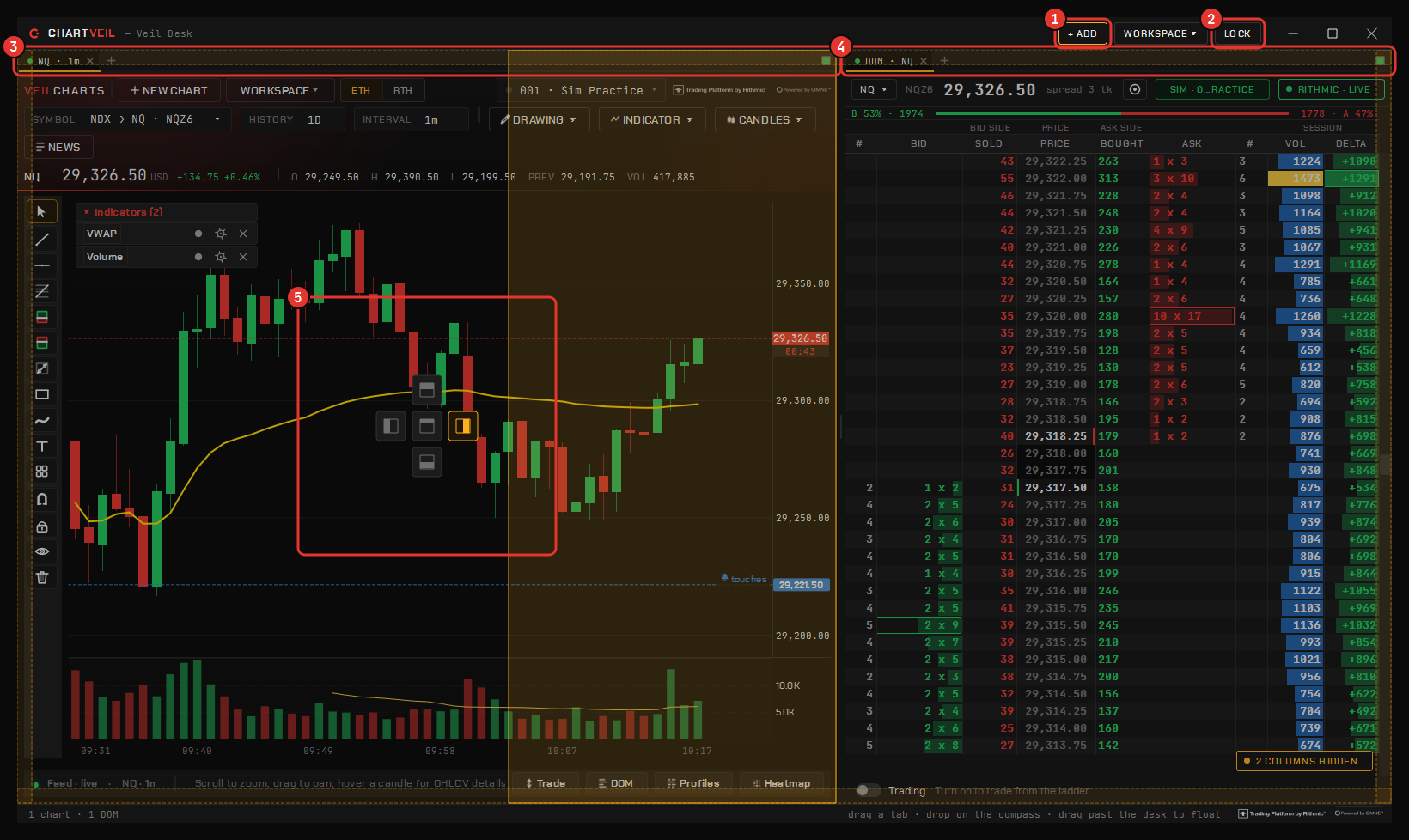
Drag a tile’s tab and a compass appears:
- drop on the center to tab it into that group;
- drop on an arm to split beside or below;
- drop on the desk’s edge to take the whole side;
- drop outside the desk to float it as a window.
Double-click a tab to maximise it and again to restore. Lock freezes the layout so a stray drag cannot move anything. The tab strip’s right-click menu floats a tile, moves it to a new desk or closes it.
A heatmap or ladder tile can open with no instrument on it: the picker appears inside the pane, and the chip switches it later.
Open beside
A chart that is a desk pane has Open beside ▸ on its right-click menu: the DOM, the heatmap, the tape, VeilGEX, News or Veil AI on this chart’s instrument, split to its right. It is the quickest way to build the classic chart-plus-ladder-plus-heatmap desk.
Tools that have one home
The copier, the Auto Trader and the journal have one home each. The desk borrows them: the tile shows the tool, and it goes back to its own window when the tile closes. VeilGEX shows a compact face in a small tile — strikes, the surface, the evolution or the history, your pick from a picker on the compact face — and the full dashboard when the tile has room.
Floors
Every pane carries a live floor. The window refuses to shrink under its panes, and the layout gives space back in a ranked order. Below its floor a pane folds instead of clipping: the ladder drops columns into a chip, the VeilGEX bar folds its expiry and view into the symbol menu, and the chart header steps down through its stages. If a tile is too small to be useful, widen it or maximise it.
Where a tool opens
Whether a tool opens in the desk or in a window is under Chart settings → Windows, and you can override it per launch by right-clicking the tile in the Command Center. The desk saves with the workspace, shares with it, and comes back at launch.