The order ticket & chart trading
Market, limit, stop and stop-limit orders priced by clicking the chart; your position on the bars with draggable stop and target; chart one contract and trade its sibling.
The ticket docks beside the chart. Which book an order goes to is decided by the account picked on it: a simulated account fills in the local simulator; a live broker account routes through your firm. The panel shows Open Qty, Open P&L and Daily P&L, then the buy/sell ticket and the bracket section.
Before your first live order
A short list, in the order it pays to do it:
- Confirm with your firm that trading through a third-party platform is allowed on the account you mean to use.
- Trade the simulator first. It runs the same ticket, the same chart trading and the same rules on live prices.
- Set the Risk Manager — a daily loss limit at minimum. Once applied it cannot be raised until the next trade window. See The Risk Manager.
- Check the account on the ticket. Every simulated account carries Sim in its name; if the ticket does not say Sim, the order is real.
- Know which contract you are trading. The instrument at the top of the ticket is the one that gets traded, and it need not be the one on the chart — read the ticket, not the chart title.
A live account puts a red edge on the strip and asks for one confirmation per window before the first order leaves. After that, orders route on the click.
Placing an order
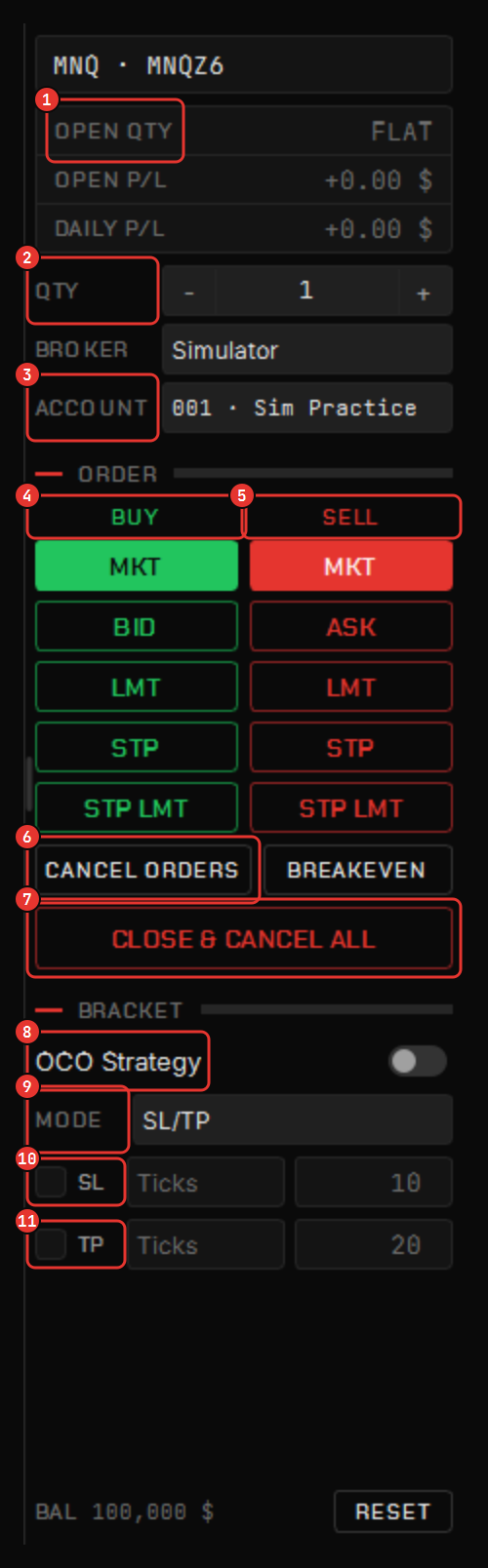
- Set the quantity in contracts.
- Pick the type: MKT, LMT, STOP or STP LMT.
- For a market order press BUY or SELL and it routes.
- For a resting order, press BUY or SELL and then click the chart at the price: the level follows your cursor and the click places it. Esc or a right-click cancels the placement.
Buy and sell carry the same colours as the candles, so the ticket and the chart speak one language.
Brackets — stops, targets and OCO
The SL/TP section attaches a stop-loss and a take-profit to the entry, in ticks or in dollars, linked OCO so one filling cancels the other. Choose SL only or TP only when you want one side. A resting entry can carry a pre-set bracket — drag its dotted SL on fill lines before the entry ever fills and the bracket spawns with the position.
Once in a trade: Breakeven moves the stop to the entry; Add stop-loss here and Add take-profit here on the chart’s right-click menu attach one at the clicked price; Move stop to breakeven is there too.
Your position on the chart
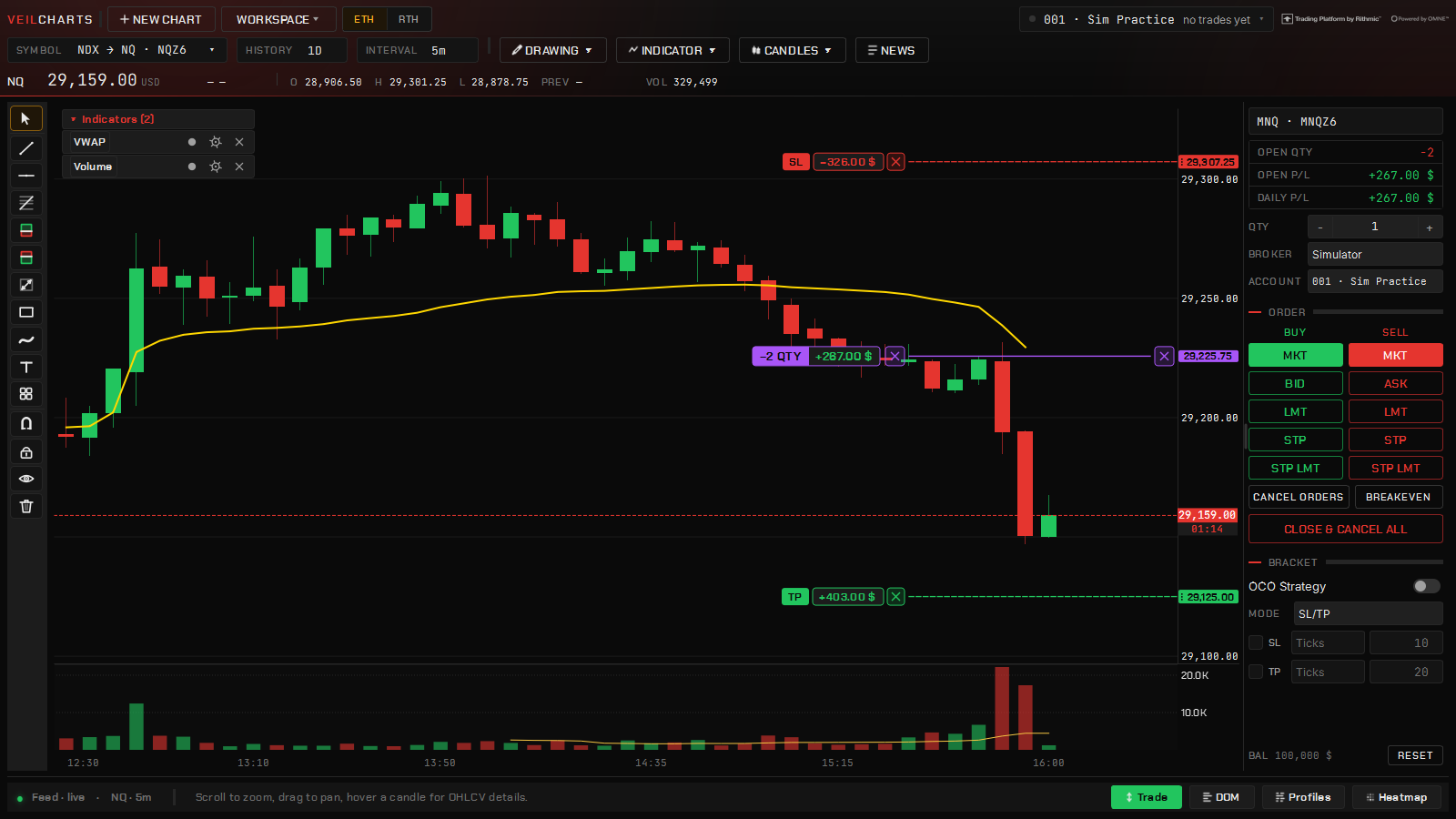
Your position lives on the chart: a row with live P&L, draggable stop and target lines, and a × that flattens. Drag a line to move the order; the ticket updates; right-click an order for Cancel this order. FLAT on the ticket closes the position; Close & Cancel All flattens and pulls every working order; CANCEL ORDERS pulls the orders and leaves the position.
Chart one contract, trade the other
Chart NQ and trade MNQ from the same window. A mini and its micro are the same underlying at the same price with the same tick size, so every level, study and fill lines up; what changes is money per tick. The position, stop and target draw on the chart you are watching, and the P&L is computed at the traded contract’s point value, not the charted one’s. It is the better way round: the mini carries the real volume so the footprint, delta and heatmap read properly, while the account trades size it can afford.
Modes
- Ticks / Money — how the bracket distances are entered.
- Risk — sizing by what the trade may lose; see Exits, sizing & sounds.
- Advanced — wraps every entry in the saved exit strategy: several targets, breakeven and a trail. See Exits, sizing & sounds.
How orders are filled
- Broker account — orders route to your firm through your credentials. Positions and P&L read back from the firm, so the platform shows the same numbers your account does. The broker’s reported position is the truth: a stop-out or a close made elsewhere is seen on the next tick, not fought.
- Simulated account — real prices, simulated fills.
The journal captures every fill on both, netted into round trips.
The ledger
Open P&L and Daily P&L are computed at the traded contract’s point value; zero reads grey rather than green or red. A Risk Manager lockout greys the entry buttons and refuses new entries; FLAT keeps working.