The Command Center
The launch window — every tool opens from here, the feed and the Risk Manager report here, and closing it exits the platform.
The Command Center is the first window to open and the last to close. Charts, heatmaps, the Veil Desk and every other tool launch from its tiles; the feed chip, the Risk Manager chip and a live CME session clock sit in its frame.
Closing the Command Center exits the application. Closing a chart window does not stop the feed.
The tiles
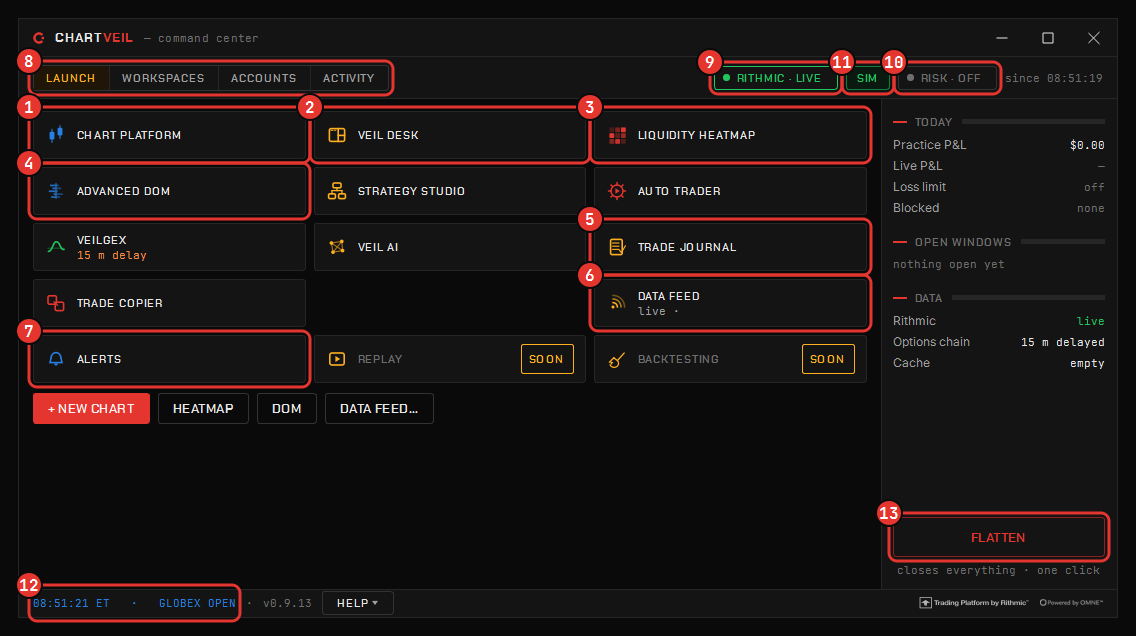
A tile’s second line is live status only — how many windows are open, which account the feed is on, a delayed options chain, the Auto Trader armed — and its description is in the tooltip. Click a tile to open the tool; right-click a tool’s tile to choose between opening it in the desk or in a window.
| Tile | Opens |
|---|---|
| Chart platform | The main chart window — NQ, ES, YM, RTY, gold, silver; every study, the DOM and the trading panel. See Charts. |
| Veil Desk | One window that docks the rest as tiles and splits. See Tabs, windows & the Veil Desk. |
| Liquidity heatmap | Order-by-order resting liquidity. Opens with no instrument; pick it on the window’s chip. See Liquidity Heatmap. |
| Advanced DOM | The depth ladder in its own window. Opens unassigned as well. See Advanced DOM. |
| Strategy Studio | Your own indicators and strategies in sandboxed Python. See Strategy Studio. |
| Auto Trader | Deploy a Studio strategy to trade its own signals. See Auto Trader. |
| VeilGEX | Dealer gamma by strike on SPX and NDX. See VeilGEX. |
| Veil AI | The assistant; every conversation is saved locally. See Veil AI. |
| Trade journal | Every fill journaled automatically. See Trade Journal. |
| Trade copier | Mirror one account’s orders on the others you own. See Trade Copier. |
| Data feed | Your saved connections, which one connects on startup, the options-chain key, the cache. |
| Alerts | Every alert you have armed and what fired today. See Alerts. |
Dimmed tiles are on the way — they do not launch, they say when they will.
The tabs
- Launch — the tiles above.
- Workspaces — your saved layouts, to open, rename or delete; and Import a shared workspace…. See Workspaces.
- Accounts — the broker accounts and simulated accounts the platform knows about, with their rule sets. See Accounts & the simulator.
- Activity — every window that is open right now, and what it is doing.
The frame
- Feed chip — offline, connecting or live, with the account the feed is on. During the exchange’s maintenance break (17:00–18:00 ET) it reads connecting… because the market is closed.
- Risk chip — watching, cooldown or off; click it for the rule book and today’s numbers. See The Risk Manager.
- Risk menu — where the daily limits, session blocks, blocked instruments and cooldown are set.
- Help — the manual, the Help Center, About, and Report a problem…, which builds a diagnostic snapshot you can read before you send it. See Troubleshooting.
- Session clock — which CME session is open and how long it has left, in the footer.
Connect Feed
Connect Feed opens the sign-in: pick your firm’s server by name (or paper trading), enter the data username and password your firm issued, and optionally save the login. The password is sealed with Windows’ own data protection so only your Windows account can read it back, and it never leaves your machine for ours. Full steps in First run.
The Data feed tile is the longer form of the same thing: several saved connections, which one connects at startup, your own options-data key if you have one, and the tick cache.
Running several instruments
Windows are per-instrument and the Command Center launches as many as your machine will carry — as tabs in one chart window, as tiles on a desk, or as windows across your monitors. Each heatmap window is decoding depth, so count those first if the machine starts to labour.