First run
Activate the build, connect your feed, open one chart, and set two things up before you ever trade.
1. Activate
On first launch the terminal asks for the email and licence key shown on your dashboard. That activates the build and takes a seat on your plan. The terminal signs in once and then stays signed in; the licence checks in with us each time it opens, and if our server cannot be reached the build keeps working for two weeks on the last successful check before it asks again.
If the key is refused or it says the seat is in use, see Troubleshooting.
2. Connect your feed
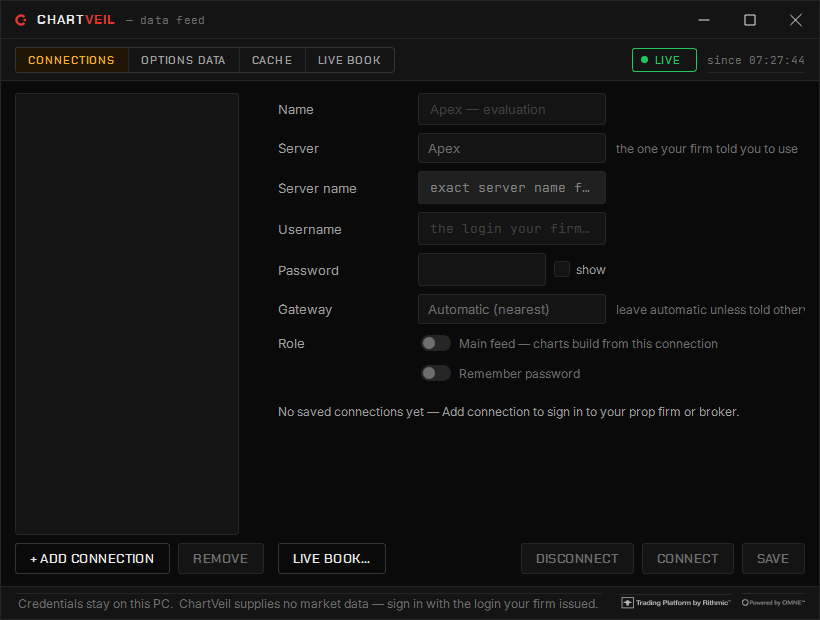
- Open the Command Center — it is the window that opens first.
- Press Connect Feed.
- Pick your server — your prop firm’s by name, or paper trading.
- Enter the username and password your firm issued for market data. That is all the dialog asks.
- Optionally tick save the login. The password is stored sealed to your Windows account and never leaves your machine for ours. Leave it unticked and you type it each session.
The status chip tells the truth: during the exchange’s daily maintenance break (17:00–18:00 ET) it reads connecting… because the market is closed, not because anything is wrong.
The dialog wants the Rithmic data login your firm issued, which is usually different from the login for the firm’s own website. A funded login on the paper-trading server, or the other way round, is refused. We will never ask you for your feed password — a message that does is not from us.
3. Open one chart
From the Command Center open one chart and one heatmap on the same instrument. Arrange them, then save the workspace from the chart’s workspace menu — it will come back exactly as you left it at the next launch. That is the whole platform running.
If the chart draws and the heatmap stays empty, your login is missing Level 2 — see Requirements.
4. Before you trade
Two more things, both a minute’s work and both cheaper than learning the ticket live:
- Open a simulated account and place a few trades there. The simulator runs the same ticket, the same chart trading and the same rules on live prices. See Accounts & the simulator.
- Set the Risk Manager’s daily loss limit from the Command Center’s Risk menu. Once applied it cannot be raised until the next trade window, which is the point. See The Risk Manager.
Where things are
| You want to | Go to |
|---|---|
| Open a chart, heatmap, ladder or any tool | The Command Center tiles |
| Connect or change the feed | Command Center → Connect Feed |
| Change chart colours, sounds, windows, data | Right-click a chart → Chart settings… (Ctrl+,) |
| Set the daily loss limit | Command Center → Risk |
| Add a study | The Indicator ▾ button in the chart header |
| Save or share a layout | The chart’s workspace menu |
| Report a problem | Command Center → Help → Report a problem… |
What happens at the next launch
Whatever was connected when you closed the platform — the chart feed and your broker sessions — reconnects, the last-opened workspace restores on the same monitors, alerts re-arm, and the journal catches itself up on the fills it missed. The terminal also checks for a newer stable build before it opens; see Files, updates & seats.