Auto Trader
Deploy a Studio strategy to trade its own signals — one strategy, one market, one timeframe, one contract count — with brackets, lockouts, a wind-down and a kill switch.
The Auto Trader executes rules you wrote and can stop at any moment. It does not decide what to trade, and Chartveil does not supply strategies or advice. Whether it may run on a funded account depends on your firm’s rules on automation — check before relying on it.
Open it from the Command Center’s Auto Trader tile or as a tile on the Veil Desk. It runs on all six markets.
A deployment
A deployment binds one strategy to one market, one timeframe and one contract count, on the simulator or on your armed live account. On every completed bar the code runs, its signal becomes the desired position, and the engine reconciles the account’s real net against it with market orders.
Trade management is built in and identical on the simulator and live:
- a stop and target as a bracket on the entry;
- auto-breakeven after a set gain;
- a stepped trailing stop;
- optional re-entry after a stop.
The editor prices each setting as you type it: a stop in ticks reads back as dollars at your contract count, and a daily loss limit reads back as the number of stop-outs it allows.
Guardrails — on entries, never on exits
Per deployment: daily loss and profit lockouts, a trade cap, a session window and a flat-by time. A rule that strands a position is the failure it exists to prevent, so exits always run. The Risk Manager sits above all of it.
Manual override, always
- The master switch is off at every launch and never restarts on by itself.
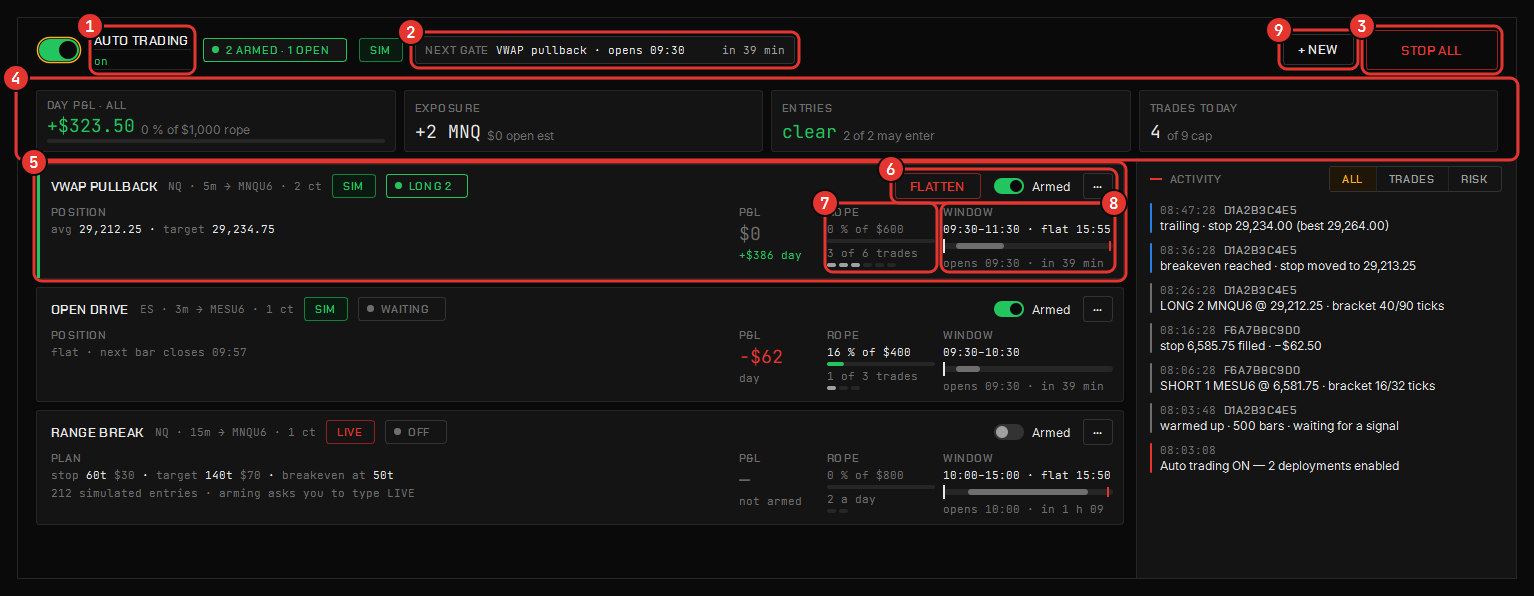
- Stop all flattens every deployment at once.
- The broker’s reported position is the truth: a stop-out or a manual close is seen on the next tick, not fought.
- The engine owns only what it opened: contracts you put on by hand are never touched, and it will not enter beside them.
Arming a live deployment
Arming shows the account, the protection and the record it is going live with — how many simulated entries the strategy has taken — and asks you to type the word. The LIVE badge stays hollow until it is actually armed.
Run every strategy on the simulator first. The sandbox stops a bug reaching anything but its own signal, the guardrails cap what a wrong signal can cost in a day, and the kill switch stops it outright — but the simulator is where you find out.
The console
The day in four tiles, then every deployment as a row that says in words what it is doing — in a position, waiting for the next bar, locked out for the day, or stopped on an error. Under it, four cells: the position with its average, stop and target; the P&L; meters for how much of the daily loss and the trade cap it has used; and its session window as a track with the clock on it. A chip in the strip names the next gate any deployment will hit and when.
The activity rail logs every decision, folds the repeated skips, and filters to trades, risk or everything.
Wind down
Wind down on a row’s menu tells a deployment to finish what it is in and take nothing new: it keeps managing the open position, switches itself off the moment it is flat, and never sends a flatten to get there.
Where the record goes
Every fill lands in the journal tagged by strategy, so a deployment’s live and simulated record accumulates beside your own trades.