Alerts
An alert belongs to the market, not the window — a price, a drawn line, a level that moves, a study, a strategy signal, a big print or a wall — delivered on the chart, spoken, as a Windows notification and a taskbar flash.
An alert is a condition on a market, not on a window. Set from any NQ chart, it shows its bell on every NQ chart, stays armed when the chart closes, and re-arms at the next launch. The micro evaluates the mini’s alerts, so an MNQ chart carries NQ’s.
Arming one
- Alt-click the price axis on any chart to arm a one-shot alert at that price.
- Right-click a price → Alert at 20,405.00… for the full sheet.
- Right-click a drawn line → Alert when price crosses: the line itself is the alert, and it follows the line when you move it.
- Alert on ▸ on the chart menu for the other kinds below.
- Alt+A opens the alert list; the Command Center’s Alerts tile opens the same list with what fired today.
The sheet
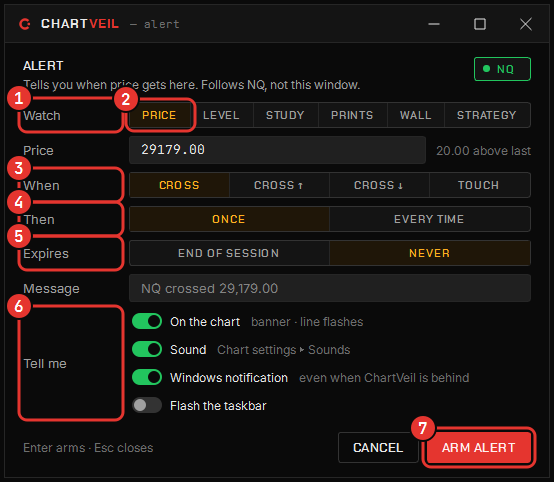
| Field | Choices |
|---|---|
| Price | The level, in the instrument’s ticks |
| Trigger | Crossing, Crossing ↑, Crossing ↓, or Touching |
| Repeat | Once, or Every time |
| Expires | When the alert retires itself |
| Delivery | A banner on the chart, spoken, a Windows notification, and a taskbar flash — each on its own switch |
What can be an alert
- A price crossing or touching a level.
- A drawn line — trend line, ray, horizontal line — that moves with the drawing.
- A named level that moves — VWAP, POC, VAH and VAL, the session high and low, the initial balance, yesterday’s levels, the GEX walls and the flip.
- A study’s output against a value, crossing up or down.
- A Studio strategy’s signal flipping.
- A big print of at least N contracts.
- A wall of at least N contracts appearing or pulled within a few ticks of price.
Delivery
When an alert fires: a banner appears top-center of every chart of that market and the alert’s line and bell go amber for six seconds; the alert’s text is spoken through the voice, chime or files you picked under Chart settings → Sounds; a native Windows notification arrives through the Chartveil tray icon — click it and the chart comes forward; and the taskbar flashes. Several alerts firing on the same print become one spoken sentence (three alerts on NQ) and one notification with a line per alert.
The tray icon’s menu carries Pause all alerts for the times you want quiet; no money action lives in the tray.
Rules worth knowing
- Crossing means crossing — the previous print on one side, this one at or past the level.
- An every-time alert re-arms only after price has moved a few ticks away, so a chop through the level fires once per excursion.
- A level crossed while the platform was closed is listed as missed in grey rather than fired late.
Managing the list
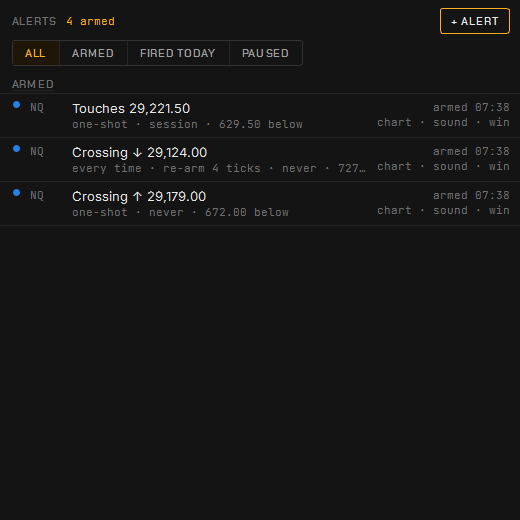
The alert list shows every alert — Armed, Paused, Fired, Missed — with Pause, Resume, Re-arm, Edit… and Delete alert on each row’s menu, and Clear this level on the chart’s price menu. VeilGEX arms its own from its Alerts ▾ menu — a wall or the flip crossed, or the flip moving by more than a set number of points.